Chapter 6: Labels and Annotations
Kubernetes uses labels and annotations to help manage applications as they scale in size and complexity.
Labels provide identifying key-value metadata that enables grouping and operating on sets of Kubernetes objects.
Annotations store non-identifying metadata for tools and integrations, but are not intended for querying or filtering resources.
Labels - Introduction
-
Labels: Purpose and Design Motivation
-
What Labels Are
- Labels provide identifying metadata for Kubernetes objects.
- They represent fundamental qualities of an object.
- Labels are used for:
- Grouping
- Viewing
- Operating on sets of objects
-
Why Labels Exist (Google’s Experience)
- Kubernetes label design comes from Google’s experience running large-scale, complex production systems.
-
-
Key Lessons Behind Labels
-
Production Abhors a Singleton
- Systems quickly scale from one instance to many.
- Kubernetes is designed to operate on sets of objects, not individual instances.
-
Rigid Hierarchies Don’t Scale
- Fixed system hierarchies fail as relationships change over time.
- Labels allow resources to belong to multiple logical groupings simultaneously.
-
-
Label Syntax Overview
- Labels use key/value pairs
- Both key and value are strings
-
Label Key Structure
-
A label key consists of: Optional prefix, Required name
- Format:
prefix/name
- Format:
-
Prefix Rules: Optional, Must be a DNS subdomain, Maximum length: 253 characters
-
Name Rules: Required, Maximum length - 63 characters
- Must:
- Start and end with an alphanumeric character
- May contain:
-(dash),_(underscore),.(dot)
- Must:
-
-
Label Value Rules
- Label values are strings
- Maximum length: 63 characters
- Must follow the same character rules as label names
apiVersion: v1
kind: Pod
metadata:
  name: my-app-pod
  labels:
    app: my-app
    acme.com/app-version: "1.0.0"
kubectl get pods -l acme.com/app-version=1.0.0
kubectl get pods -l app=my-app,version=1.0.0
Labels – Applying Labels
-
Applying Labels to Deployments
- Deployments can be created with labels that describe key dimensions such as application name, environment, and version.
- In this example, labels like
app,env, andverare applied at creation time to represent two applications (alpaca and bandicoot), multiple environments, and different versions.
$ kubectl run alpaca-prod \
  --image=gcr.io/kuar-demo/kuard-amd64:blue \
  --replicas=2 \
  --labels="ver=1,app=alpaca,env=prod"
$ kubectl run alpaca-test \
  --image=gcr.io/kuar-demo/kuard-amd64:green \
  --replicas=1 \
  --labels="ver=2,app=alpaca,env=test"
$ kubectl run bandicoot-prod \
  --image=gcr.io/kuar-demo/kuard-amd64:green \
  --replicas=2 \
  --labels="ver=2,app=bandicoot,env=prod"

$ kubectl run bandicoot-staging \
  --image=gcr.io/kuar-demo/kuard-amd64:green \
  --replicas=1 \
  --labels="ver=2,app=bandicoot,env=staging"
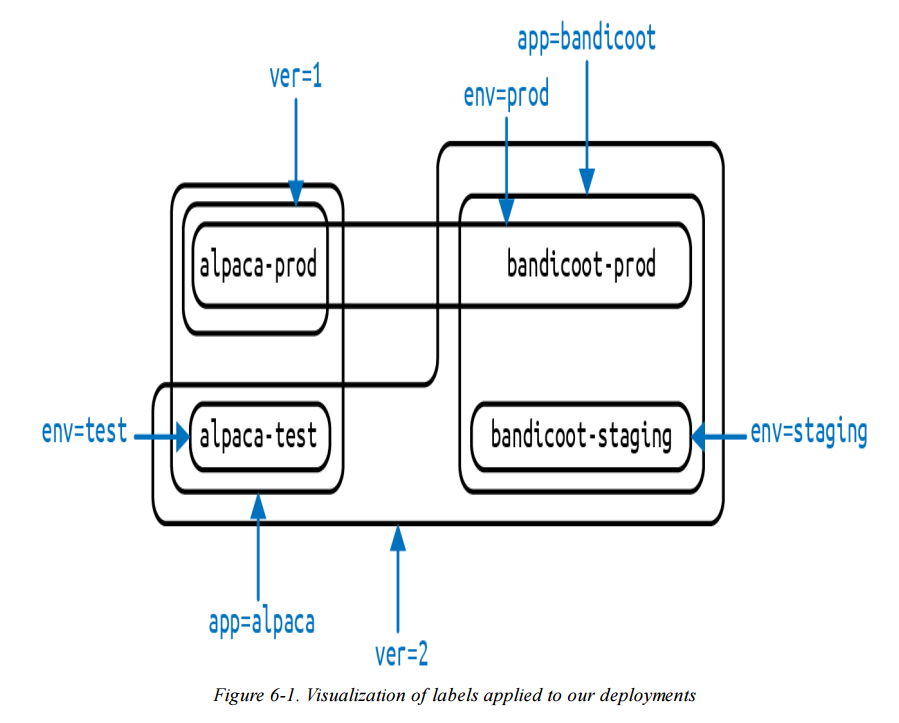
-
Why This Matters
- Labels enable Kubernetes to manage and reason about groups of Pods created by Deployments, rather than individual Pods.
- By combining labels, resources can be selected and operated on based on application, environment, or version.
-
Resulting State
- After applying labels consistently, multiple Deployments can coexist in the cluster while remaining clearly distinguishable.
- Commands like
kubectl get deployments --show-labelsmake these logical groupings visible and verifiable.
Labels – Modifying Labels and Selectors
- Modifying Labels
- Labels can be added, updated, or removed after an object is created using
kubectl label. - Applying a label to a Deployment only affects the Deployment itself, not the ReplicaSets or Pods created by the Deployment.
- To change labels on Pods, the Pod template inside the Deployment must be updated.
- Labels can be added, updated, or removed after an object is created using
kubectl label deployments alpaca-test canary=true
- Label values can be displayed as a column using the
-Loption.
kubectl get deployments -L canary
- A label can be removed by appending a dash (
-) to the label key.
kubectl label deployments alpaca-test canary-
- Label Selectors
- Label selectors filter Kubernetes objects based on Boolean expressions over labels.
- Selectors are used by both users (
kubectl) and controllers such as ReplicaSets.
kubectl get pods --show-labels
- Select objects where a label equals a value.
kubectl get pods --selector="ver=2"
- Multiple selectors separated by commas represent a logical AND.
kubectl get pods --selector="app=bandicoot,ver=2"
- Select objects where a label matches one of several values.
kubectl get pods --selector="app in (alpaca,bandicoot)"
- Select objects where a label key exists.
kubectl get deployments --selector="canary"
- Selector operators:
- key=value : key is set to value
- key!=value : key is not set to value
- key in (v1,v2) : key is one of v1 or v2
- key notin (v1,v2): key is not one of v1 or v2
- key : key exists
- !key : key does not exist
kubectl get deployments --selector='!canary'
kubectl get pods -l 'ver=2,!canary'
Labels – Label Selectors in API Objects
-
Label Selectors in API Objects
- Kubernetes objects use label selectors to refer to a set of other Kubernetes objects.
- In API objects, selectors are defined as structured fields, not simple strings.
- For historical reasons, Kubernetes supports two selector forms:
- A newer, more expressive form
- An older, simpler form (for backward compatibility)
-
New Selector Form (matchLabels + matchExpressions)
- Most modern Kubernetes objects support this form.
- A selector like
app=alpaca,ver in (1,2)is represented as:
selector:
  matchLabels:
    app: alpaca
  matchExpressions:
    - {key: ver, operator: In, values: [1, 2]}
-
matchLabels represents simple equality checks.
-
matchExpressions supports advanced operators such as
InandNotIn. -
All selector terms are evaluated using logical AND.
-
The
!=operator is internally represented as aNotInexpression with a single value. -
Older Selector Form
- Used by older resources such as ReplicationControllers and some Services.
- Only supports the
=operator. - All key/value pairs must match exactly.
selector:
  app: alpaca
  ver: "1"
Equal to in Deployment / ReplicaSet
selector:
  matchLabels:
    app: alpaca
    ver: "1"
P.S.
你 (kubectl / YAML)
   ↓
Kubernetes API (control plane)
   ↓
Controllers(Deployment / ReplicaSet / Scheduler)
   ↓
Pods 被建立、排程到 Nodes
   ↓
CNI 建立網路
   ↓
Pods 跨 Node 溝通(data plane)
你的電腦裡
└── VM / Docker container
    └── Kubernetes
        ├── API Server(server)
        ├── Scheduler
        ├── Controllers
        └── Nodes(跑 Pods)
-
Labels in the Kubernetes Architecture
- Kubernetes is a decoupled system with no fixed hierarchy.
- Relationships between objects are defined using labels and selectors, not hard references.
-
Common Uses of Labels and Selectors
- ReplicaSets use selectors to find and manage their Pods.
- Services use selectors to determine which Pods receive traffic.
- Pods use node selectors to choose which nodes they can be scheduled on.
- Network Policies use labels to control which Pods are allowed to communicate.
-
Key Takeaway
- Labels and label selectors act as the glue that connects Kubernetes objects.
- As applications grow, label usage typically becomes more complex and expressive over time.
Annotations – Purpose and Usage
-
What Annotations Are
- Annotations provide a place to store additional metadata for Kubernetes objects.
- They are designed to assist tools and libraries, not for identifying or grouping objects.
- Annotations store opaque data that Kubernetes itself does not interpret.
- They are often used by external systems interacting with Kubernetes via the API.
-
Labels vs Annotations
- Labels are used to:
- Identify objects
- Group objects
- Select objects (via selectors)
- Annotations are used to:
- Attach extra information
- Describe origin, usage, or policy
- Support tooling and automation
- When in doubt:
- Store metadata as an annotation
- Promote it to a label only if it is needed for selection
- Labels are used to:
-
Common Uses of Annotations
- Record the reason for the latest update to an object.
- Pass special scheduling policies to custom schedulers.
- Track which tool last updated a resource and how it was updated.
- Attach build or release metadata such as:
- Git commit hash
...
metadata:
  annotations:
    example.com/icon-url: "https://example.com/icon.png"
...
Cleanup – Removing Deployments
- Cleaning Up Resources
- All Deployments created in this chapter can be removed at once using:
kubectl delete deployments --all
- Selective Cleanup
- The
--selectorflag can be used to delete only Deployments that match specific labels. - This allows more controlled cleanup instead of deleting everything.
- The
kubectl delete deployments --selector="env=test"